JBCL Downloads
These are the main Downloads:
Note until I have an automatic Download page setup email me if you wish
to download any of these programs.
I some cases I can email them to you - they
are small enough to be sent as attachments.
In
other cases the programs need menu and help and settings files as well,
and it is better to have a more complete installation. In theses
cases I will send you a link to download the install file from.
To install
If
you are on a network, then create a folder on the server called JBCLUpd
or JBCLMain, and download or save the file to that folder.
If you are on a standalone PC, then create a
folder on the PC called E:\JBCLMain or C:\JBCLMain, and download or save
the file to that folder.
If
it is a downloaded file, then run it and it will ask if you want to
install JBCL programs. It will create needed folders and a
desktop icon as it does this.
If it is an emailed file, it will
usually be sent with a .DAT extension, and you will have to rename it
when you save the file to have a .EXE extension, and then run it.
The folders created will be below the JBCLUpd (or JBCLMain) folder, and also on the local PC under C:\JBCL
To Index
About Time - Windows Automated Time Logging

This utility is part of a set of Online Time Recording software I am
producing.
Some of these, like AboutTime can be useful by themselves.
What does AboutTime do?
It has 3 main functions:
1 - Past - It can record miscellanous notes and find them later.
This gives a place to store information you have no other logical place
to put.
Notes are date and time stamped and can be given labels to find them
more easily
2 - Present - Automated Time Recording
This is a simple and efficient activity logger. It records and
datestamps
every time you start something new. Tasks are logged to the nearest
second. It records this information without you having to do anything
except
start the program. The logfile is concise and plain text and can be
read by
Notepad or any other program.
3 - Future - Schedule 1 off or repeating events
More about the Now Function - Automatic
recording of what I am doing)
More about the Future Function -
Repeating or One-off events
More about miscellaneous setup options
Appearance
Because it is a program running constantly in the background, on the
actual desktop it has a semi transparent appearance. By
default
it is nearly invisible when other programs are active, but it you mouse
over it it becomes more visible.
When mouse is not on the program:

When the mouse moves over the program the functions become more visible:

(How transparent it is in either case can be set by you.)
To Index
More about the Past Function -
(Recording and finding Notes)
More about the Now Function - Automatic
recording of what I am doing)
More about the Future Function -
Repeating or One-off events
More about miscellaneous setup options
About Time - Past function
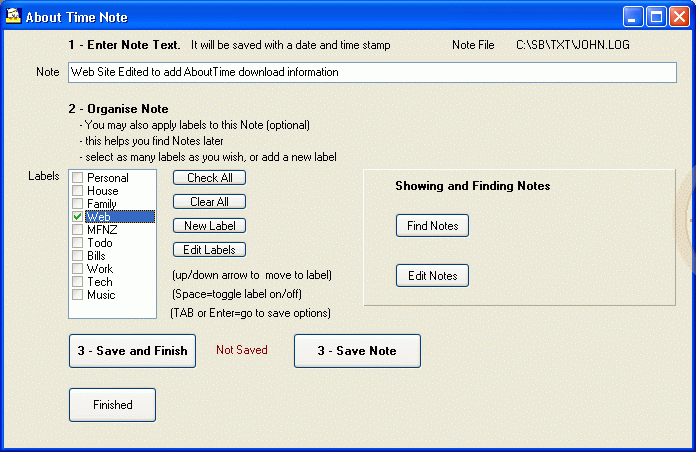
This is useful for storing notes that have no obvious place to file
them. Instead of
covering your monitor with yellow post-it notes file them in here.
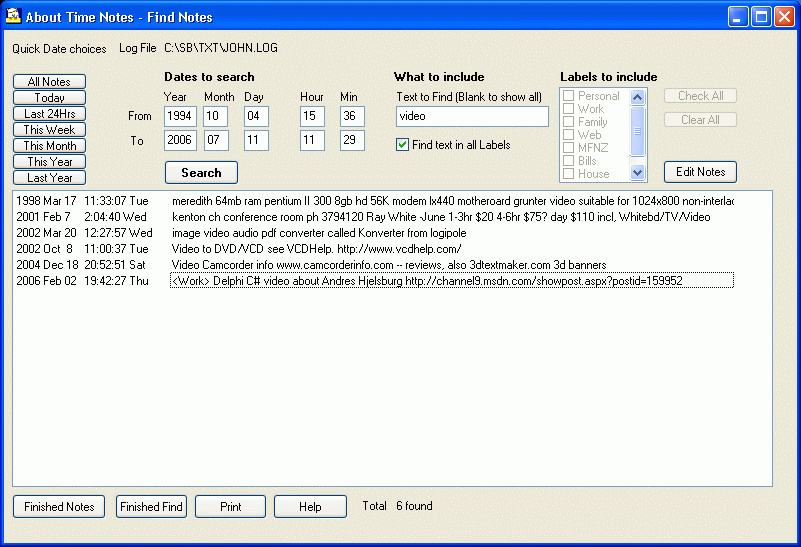
The advantage is that they are all in one place, and can be
found by simple
searching for the text in them.
They can be further origanised by attaching categories to
them. This is like
filing them in a mailbox, but if you know how Gmail works it is more
like
the labels that Gmail uses because you
can attach more than one label to any note.
Who is it useful for?
Anyone who has lots of miscellaneous information they want to
keep track of.
Example of Storing a note:
Example of Finding stored notes:
To Index
More about the Past Function -
(Recording and finding Notes)
More about the Now Function - Automatic
recording of what I am doing)
More about the Future Function -
Repeating or One-off events
More about miscellaneous setup options
About Time - Now function
Who is it useful for?
Anyone who spends much of a day on a computer and wants to keep track
of how much time they spend on different tasks automatically.
What information does it store?
Each time you switch to a new Window, it records a line in the log file
with
the date, time, number of seconds in the window, and the title bar. For
most
Windows programs the title bar is very informative, and gives an exact
idea of
what you are doing, since most Windows applications put a lot of
information
in the title bar, for example Word puts the name of the document,
Browsers put
the name of the web site, and Outlook puts the subject of the message.
Getting information and reports
To find information about "What was I doing?" click the info button.
This will
pause the
recording
and start the information program.
-Information can be got between any two dates and times, and common
date choices
can be picked by clicking a button.
-You can list some of the activities by entering a filter. eg putting
in
"Internet Explorer" will show only web browsing.
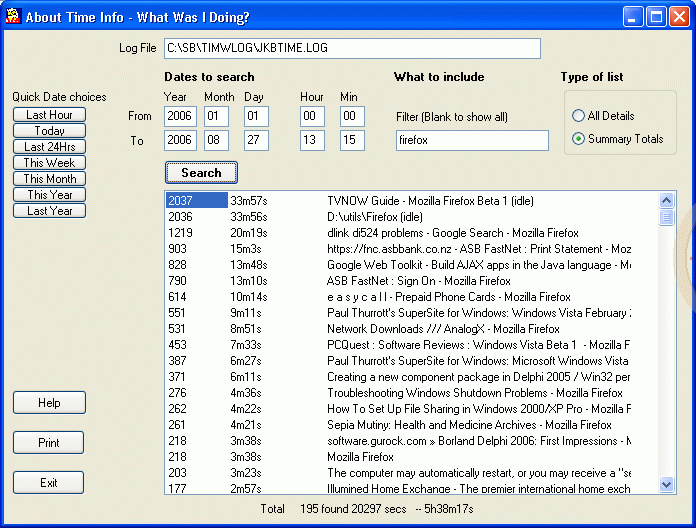
-You can list activities in time order, or as a summary (activities
totalled with
the longest at the top).
1 - Excerpt of showing details

Example of Summary Details:
You can print this information if you wish.
Examples of printouts:
Details report example (abbreviated)
About Time Info - What Was I Doing?
Run on 17/02/2005 13:45
AboutTime log file=C:\SB\TIMWLOG\JKBTIME.LOG
Selection: From 2005/01/01 00:00 to 2005/02/17 13:42
Filter=WORD
Search list shown - all logged items in range
2005/01/31 18:34:04 3 Sample_Ver00006.doc - Microsoft Word
2005/01/31 18:34:48 1 Sample_Ver00006.doc - Microsoft Word
2005/01/31 18:34:51 10 Sample_Ver00006.doc - Microsoft Word
2005/01/31 18:35:04 1 Sample_Ver00006.doc - Microsoft Word
2005/01/31 18:35:05 1 Sample.DOC (Read-Only) - Microsoft Word
2005/01/31 18:35:06 1 Sample_Ver00007.doc - Microsoft Word
Summary Report example (abbreviated)
About Time Info - What Was I Doing?
Run on 17/02/2005 13:47
AboutTime log file=C:\SB\TIMWLOG\JKBTIME.LOG
Selection: From 2005/01/01 00:00 to 2005/02/17 13:42
Filter=WORD
Summary Totals of Time

2350 39m10s Wordsheet project - Message (HTML)
413 6m53s sample.DOC - Microsoft Word
319 5m19s Document1 - Microsoft Word
281 4m41s Sample2.DOC - Microsoft Word
-When you finish the report program remember to restart the recording.
If it iwas recording when you clicked the Info button it should start
recording again automatically.
To Index
More about the Past Function -
(Recording and finding Notes)
More about the Now Function - Automatic
recording of what I am doing)
More about the Future Function -
Repeating or One-off events
More about miscellaneous setup options
About Time - Future
You can set the system to run one-off events or repeating events.
These events can be many types:
-reminders of appointments
-reminders of birthdays
-programs to be run at a certain time
This area is still under development, but will be probably the
most
useful area of the program.
(Note because of security implications for having programs run
automatically,
there are inbuilt security mechanisms to make sure programs run
are OK to run.)
To Index
More about the Past Function -
(Recording and finding Notes)
More about the Now Function - Automatic
recording of what I am doing)
More about the Future Function -
Repeating or One-off events
More about miscellaneous setup options
Miscellaneous Details
How do I set the program
to start automatically?
Add a shortcut to the program in the Startup folder:
The installation program will install this in the Startup folder
automatically.
I consider this the best place to put it, as users can remove it
manually with Windows
Explorer, or using Windows configurations tools such as MSCONFIG.
To add to startup folder manually:
Right Click Start and select open, right click Programs and select
open,
right click Startup and select open. Right click in the folder and
select
new shortcut and fill in the details, for example:
Target: "C:\JBCL\AboutTime.exe" FILE=C:\DATA\MYTIME.LOG
(The "" are needed if the pathname has spaces in it)
Start in: C:\DATA
To delete the automatic startup, open the startup folder as above, and
delete the
AboutTime shortcut.
Notes about installation and uninstallation
This program does not install anything in the Registry.
It can be copied to another computer by copying the folder(s) with the
programs and the logfile.
The installation program installs:
-2 programs and this text notes file.
-A shortcut on the desktop
-A shortcut in the startup folder.
These can be deleted either manually or by using the uninstall option
in
Control Panel Add/Remove programs.
To Index
AT Clock
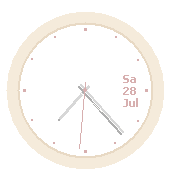
This is a inconspicuous floating desktop clock - it is transparent and
always on top makes it look just like one of the Max OSX or Vista
widgets/gadgets, can be dragged by the roundframe (the rest is
transparent)
It is based on the look of one of the Opera transparent widget
clocks, but also with seconds and date. The Opera one only runs while
the browser is open, where as this one runs independently.
Free download - Postcardware or emailware:
If you like it send me an interesting postcard or email.
source available as well under informal public licence and GPL:
1 - feel free to use and modify it
2 - mention of the parts from me would be nice
3 - if you improve it send me a copy.
4 - If you like it/use it send me an email to let me know :).
Note this clock will look transparent under Windows XP and
Vista, and will probably not be suitable under other versions of
Windows.
By default it postions itself half way down the right hand
side of the screen.
Here is are examples of what it looks like over on a real screen:
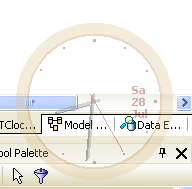
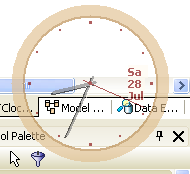
The left picture shows the normal appearance of the clock, the right
picture shows how it becomes less transparent when the mouse moves over
it.
Note in the real version the hands do move.
To Index